
Calendar Time LoggerFor iPhone, iPad, Mac, and Apple Watch
Your work, logged beautifully.
Track your work as it happens, keep it in Apple Calendar with its real start and finish times, and understand how you spend your time across your Apple devices.
One session. Every screen.
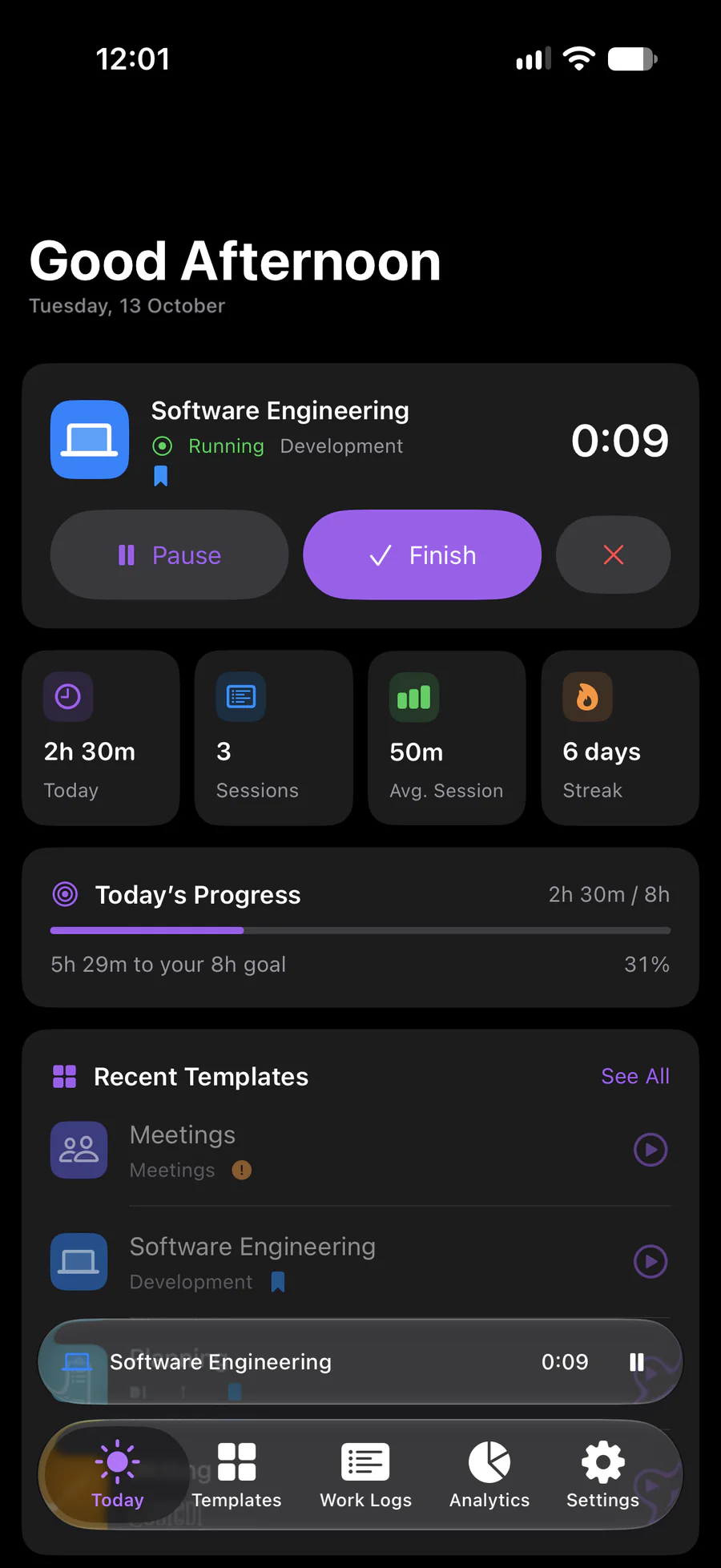
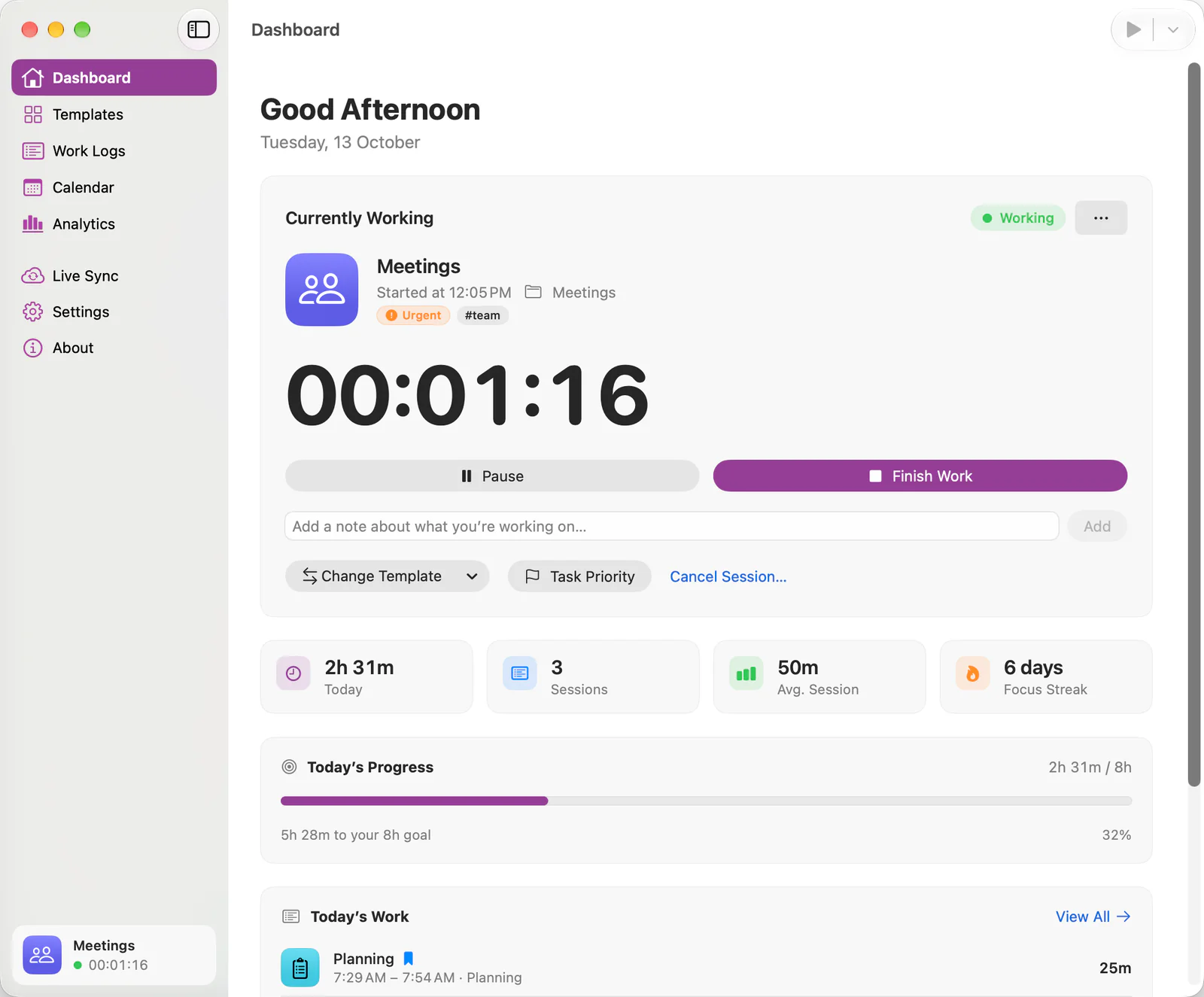
Start on your iPhone and the session in progress syncs to your Mac through iCloud. Each device has its own native app, shaped for how you use it.
-
iPhone
The control center you carry, with Live Activities, widgets, and Siri.
iPhone -
iPad
A larger touch workspace with a sidebar and keyboard shortcuts.
iPad -
Mac
The focused desktop, with Analytics, export, and a menu bar item.
Mac -
Apple Watch
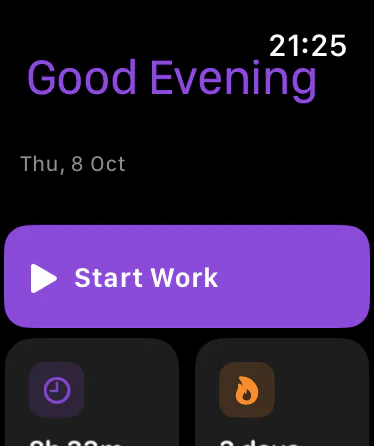
Start, pause, resume, and finish from your wrist.
Apple Watch
Record work as it happens.
Your actual work is the source of truth. Apple Calendar is the record.
-
Start Work
Choose a template or a quick task. Nothing is added to your calendar yet.
-
Pause and resume
Step away and come back. Active time leaves the pauses out.
-
Finish
The session is saved to Work Logs first, with its start, finish, and active time.
-
Calendar event
Then it is written to Apple Calendar, from its real start to its real finish.
Everything it does.
A focused set of tools for recording work and understanding it later.
- Work trackingStart, pause, resume, and finish one session at a time.
- Apple CalendarFinished sessions become events with real times.
- Every Apple deviceNative apps for iPhone, iPad, Mac, and Apple Watch.
- Live SyncYour private iCloud keeps devices in step.
- AnalyticsTotals, streaks, categories, and patterns over time.
- TemplatesSet up recurring work once, start it with a tap.
- Work LogsEvery finished session, searchable and editable.
- Task PriorityRecord whether work was urgent, important, or both.
- Apple WatchManage the running session from your wrist.
- Excel exportYour work logs as an .xlsx workbook.
iPhone
Your work, always within reach.
Start from Today or a recent template, keep the running session one tap away in every tab, and review your logs and analytics on the go.
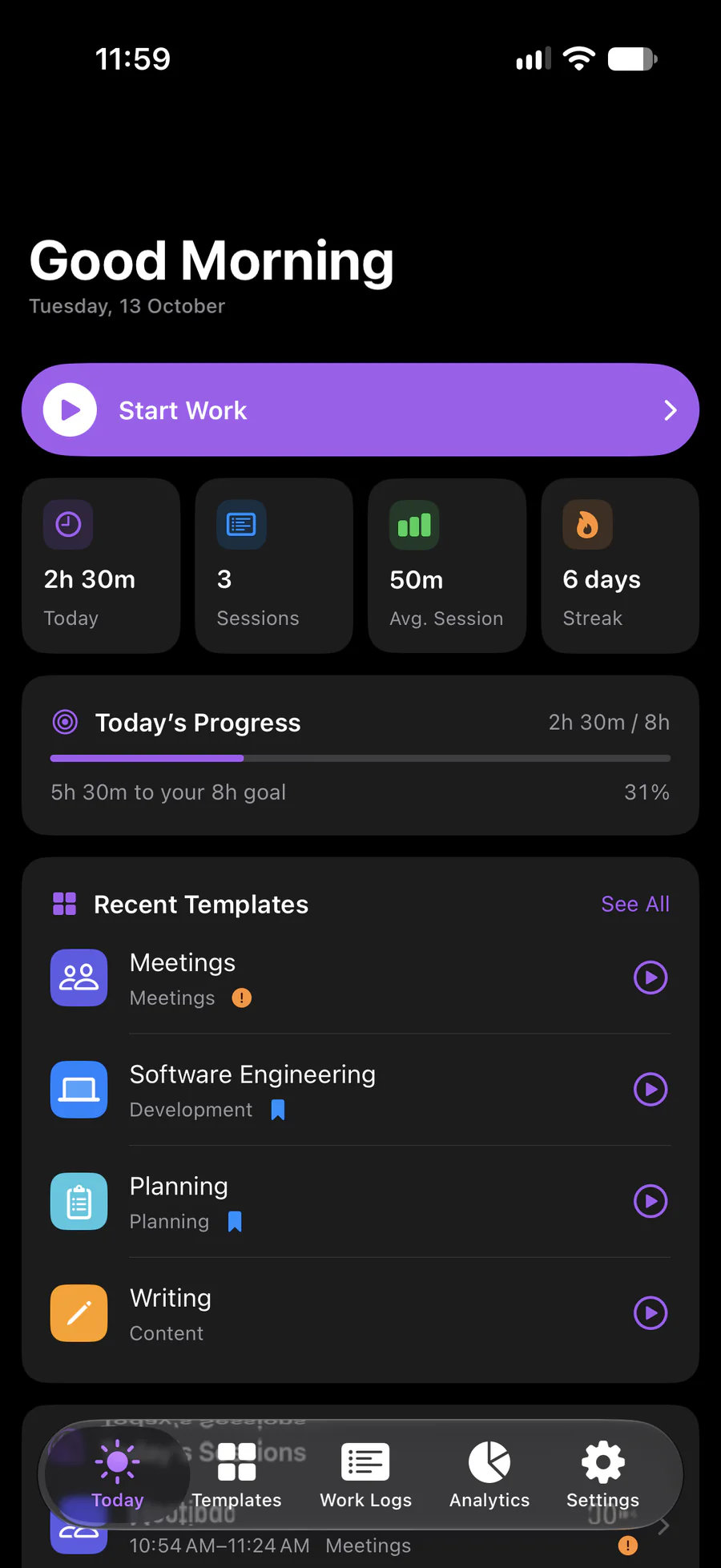
TodayStart work and see the day so far. 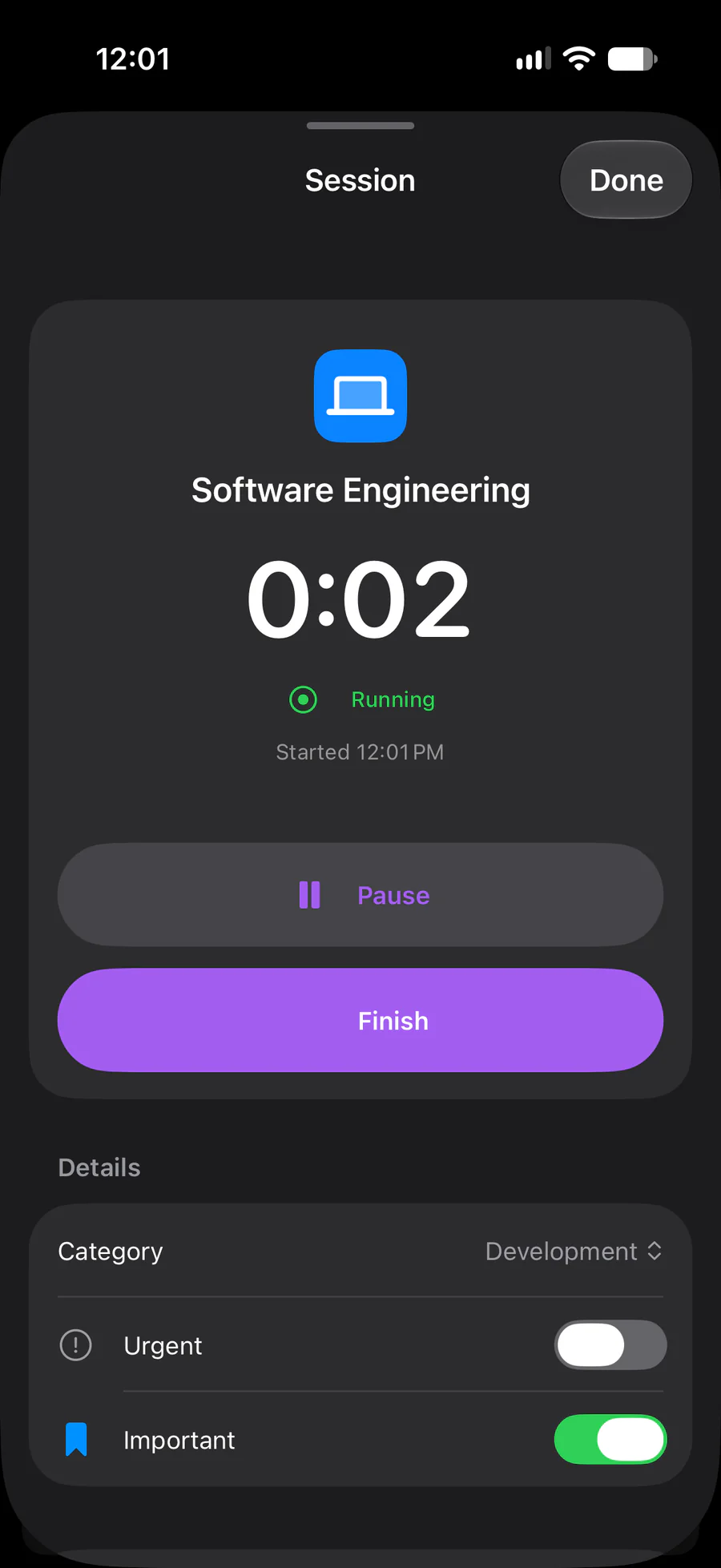
Active sessionPause, resume, or finish. 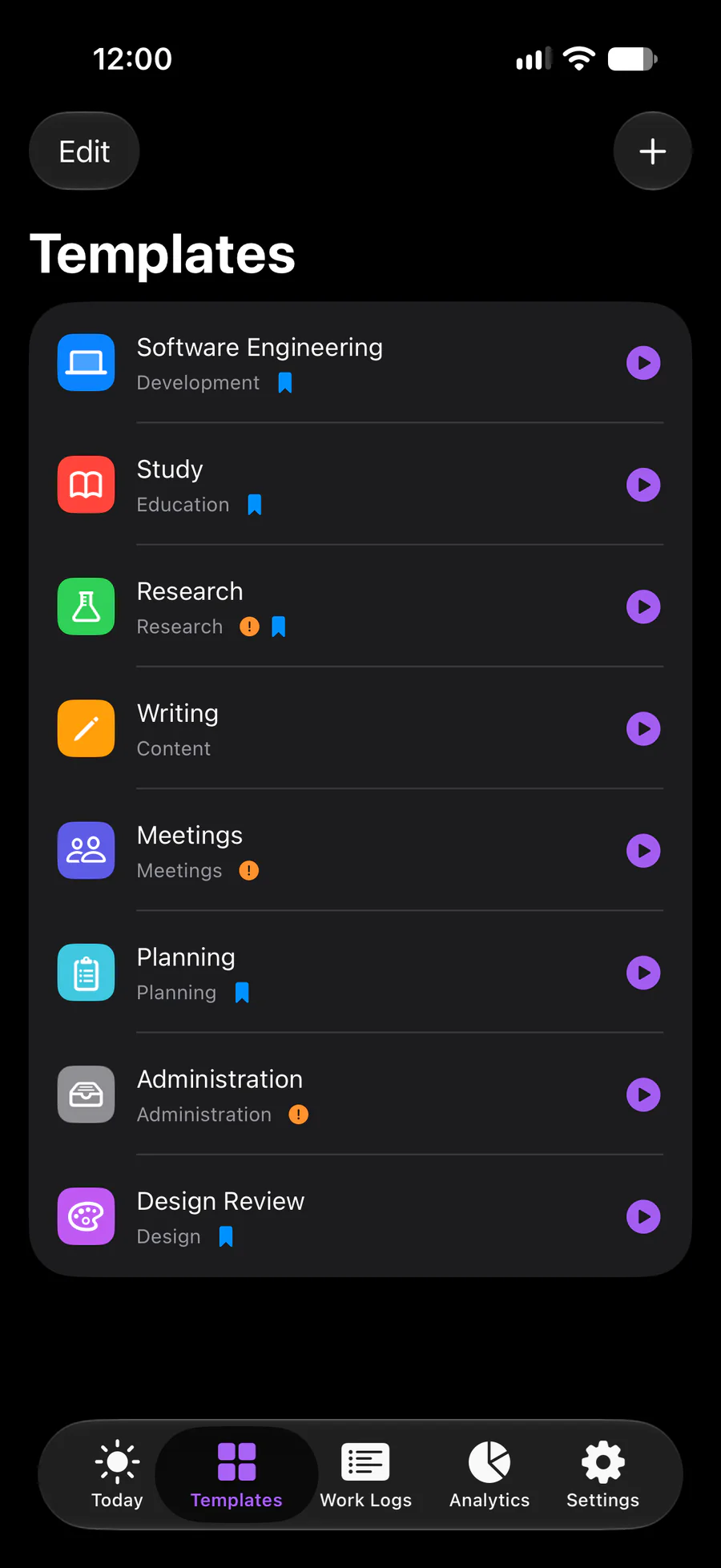
TemplatesEach one starts with a tap. 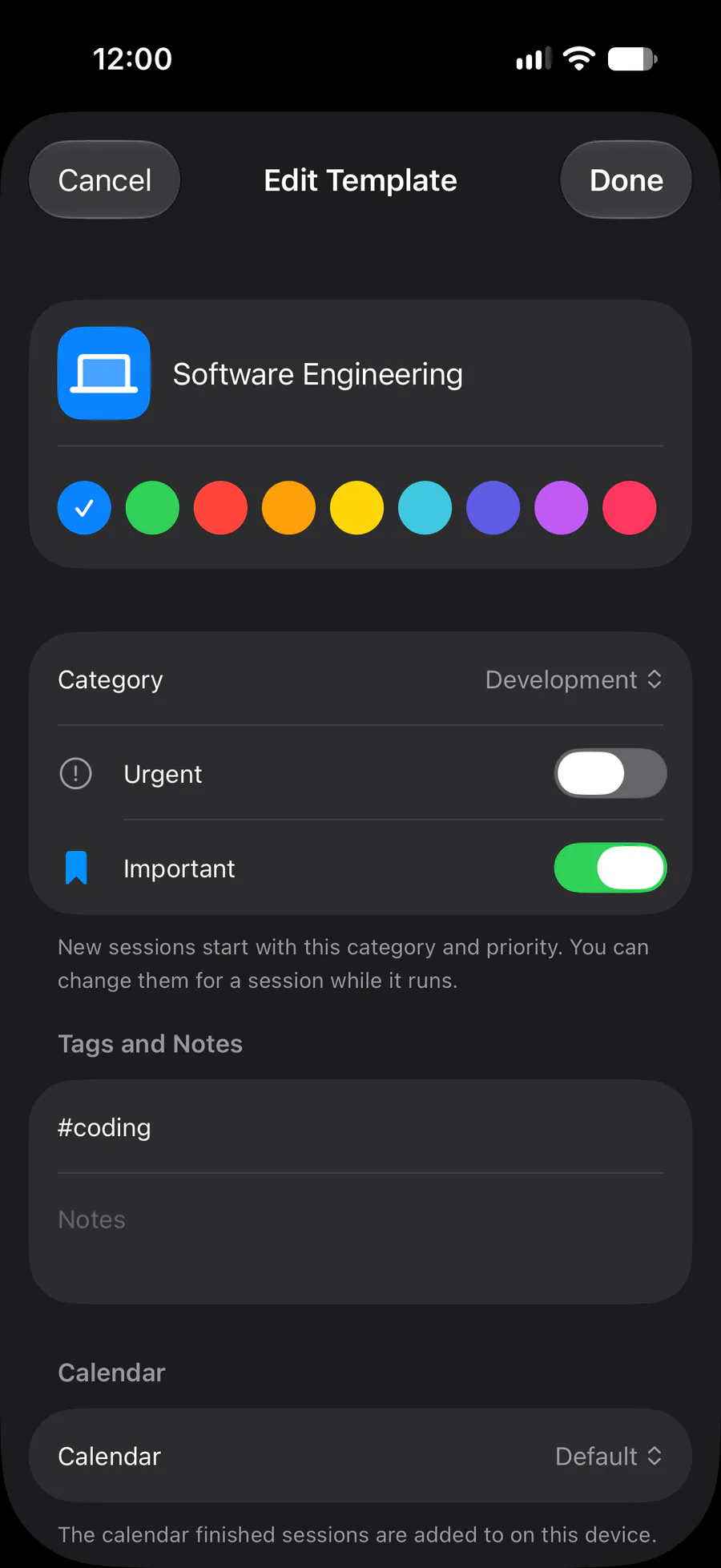
Edit TemplateColor, category, and priority. 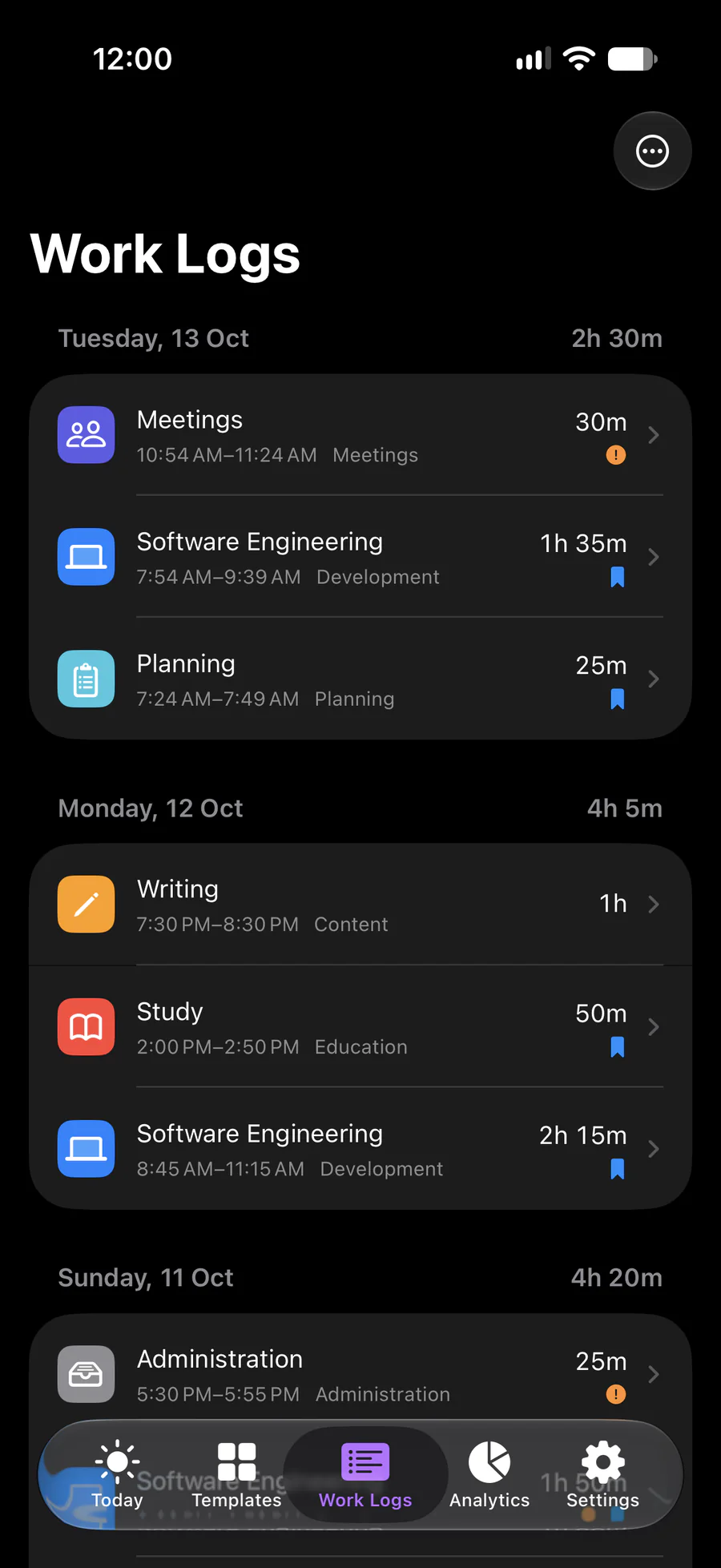
Work LogsEvery finished session, by day. 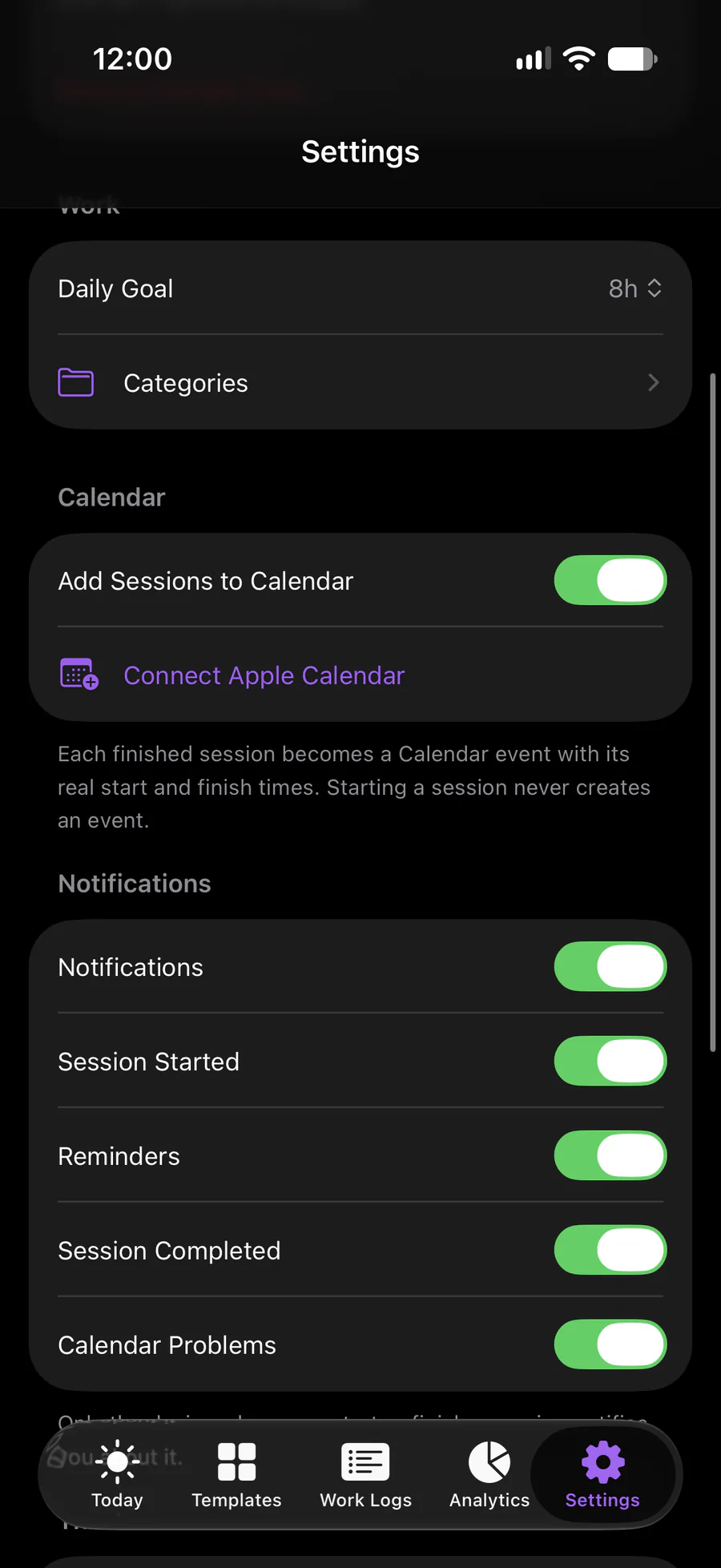
SettingsDaily goal, Calendar, notifications.
- Live Activity
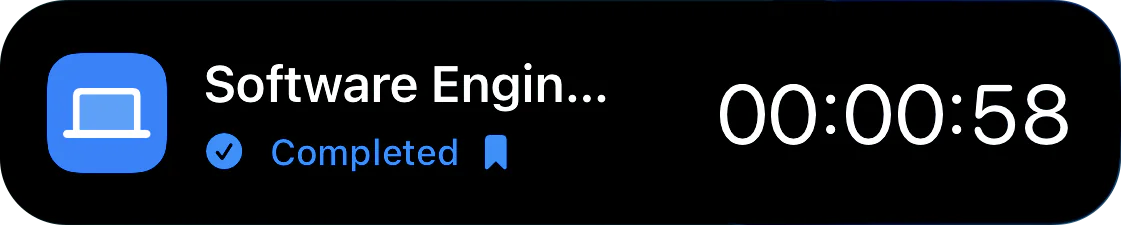
- The running session on the Lock Screen and in the Dynamic Island, with Pause, Resume, and Finish.
- Widgets
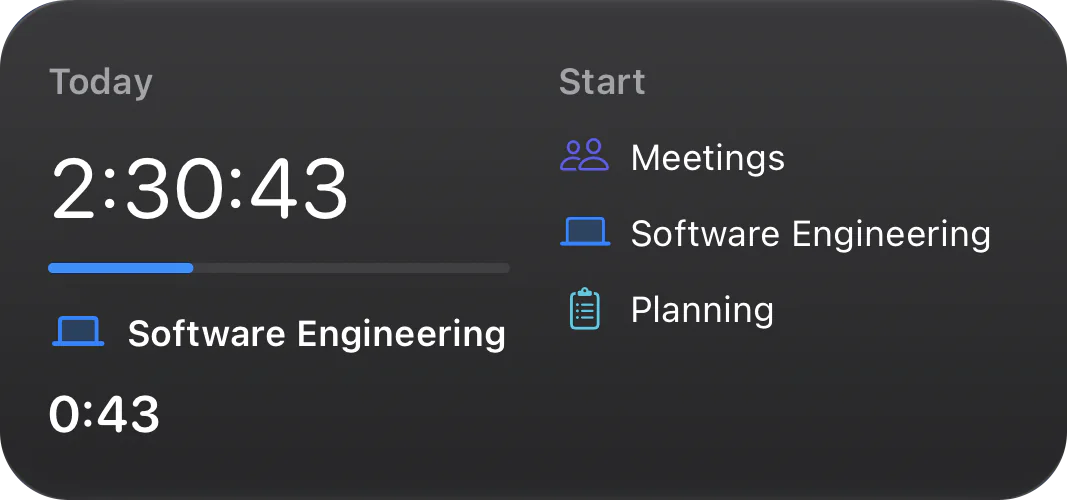
- Today's work on the Home Screen or Lock Screen, with shortcuts to your recent templates.
- Siri and Shortcuts
- Start, pause, resume, and finish work, or show today's work, by voice or in Shortcuts.
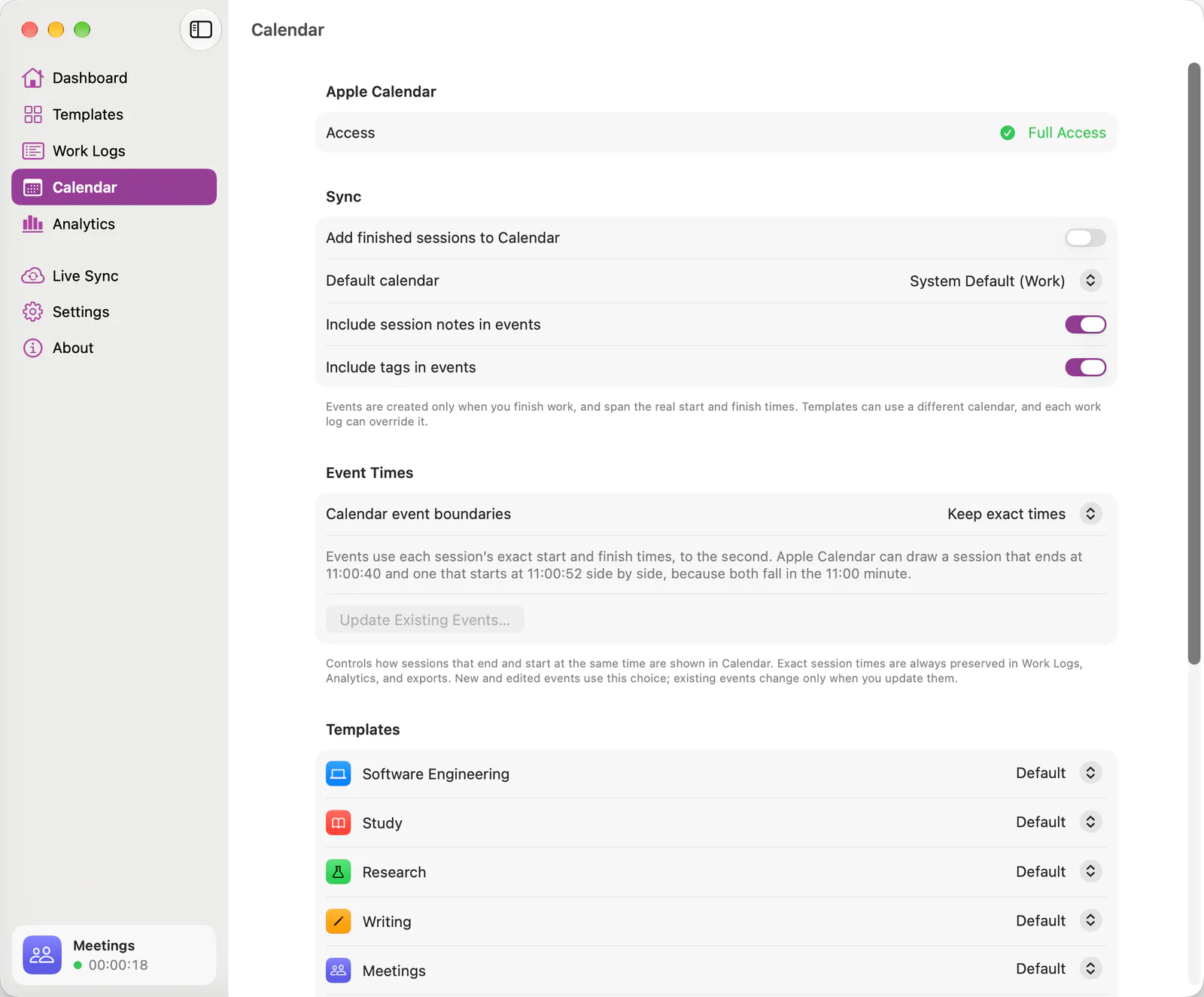
Apple Calendar
Your calendar shows what you actually did.
When you finish, Calendar Time Logger adds the session to Apple Calendar exactly as it happened — not as it was planned.
- Real start and finish
- Events run from the moment you started to the moment you finished. A template never decides how long an event is.
- Active time, recorded
- Event notes record active and paused time, the category, and the priority — with tags and notes if you choose.
- Linked to the session
- Edit a work log and its event follows. Events the app didn't create are never touched.
- Never loses your work
- The work log is saved before Calendar is written. If Calendar is unavailable, the session is marked Sync Failed with a way to retry.
An example
A session from 9:00 to 11:15 with a 25-minute pause becomes a 9:00–11:15 event whose notes record 1h 50m of active work.
Keep exact times to the second, or round to the nearest minute so back-to-back sessions stack cleanly.
Templates
Start work in a moment.
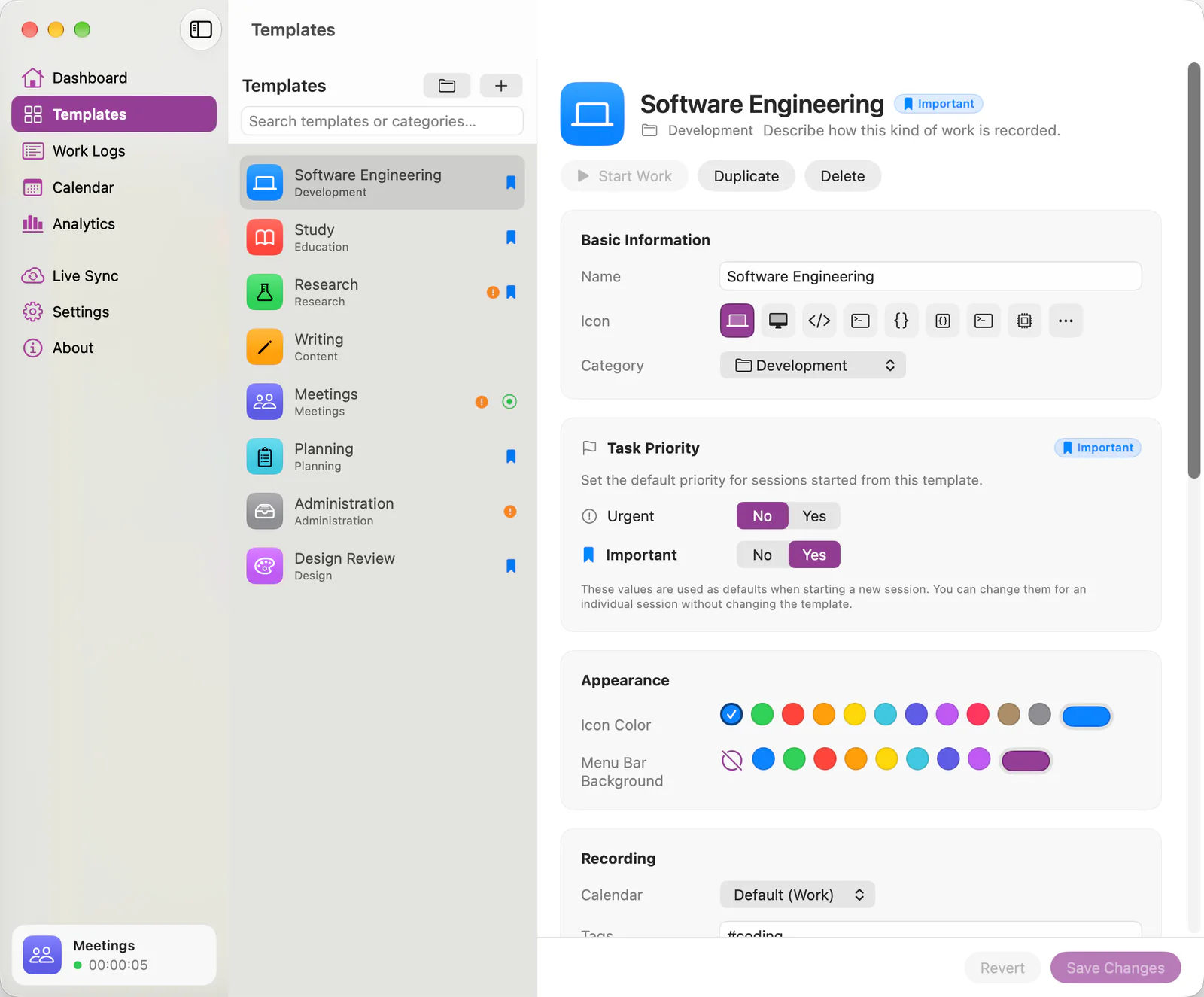
A template describes how a kind of work is recorded — not how long it lasts. Set it up once, then start it with a tap.
- Name, SF Symbol icon, and color
- Category and calendar
- Urgent and Important defaults
- Tags and notes
- Menu bar style and notifications
Something one-off? Quick New Task starts named, categorized work without a template.
Work Logs
Your work, remembered.
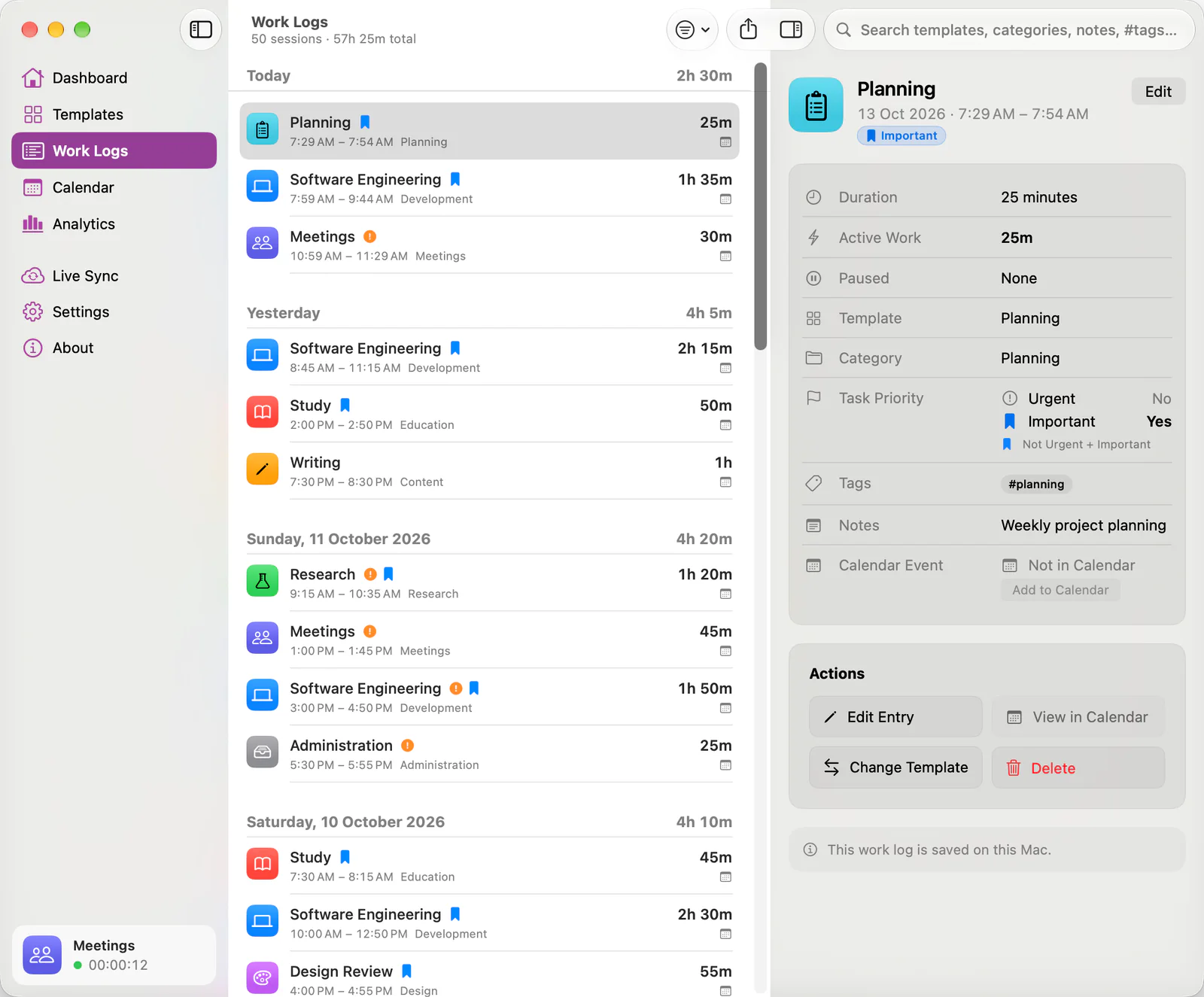
Every finished session, grouped by day — with its time range, duration, template, category, priority, tags, and Calendar status.
- Search and filter
- Search templates, categories, notes, and tags. Filter by date, template, category, tag, priority, and Calendar status.
- The whole story
- See wall-clock, active, and paused time, and the Calendar event each session became.
- Correct anything
- Edit times, category, priority, tags, and notes, retry a failed sync, or delete a log — with or without its event.
Analytics
Understand where your time goes.
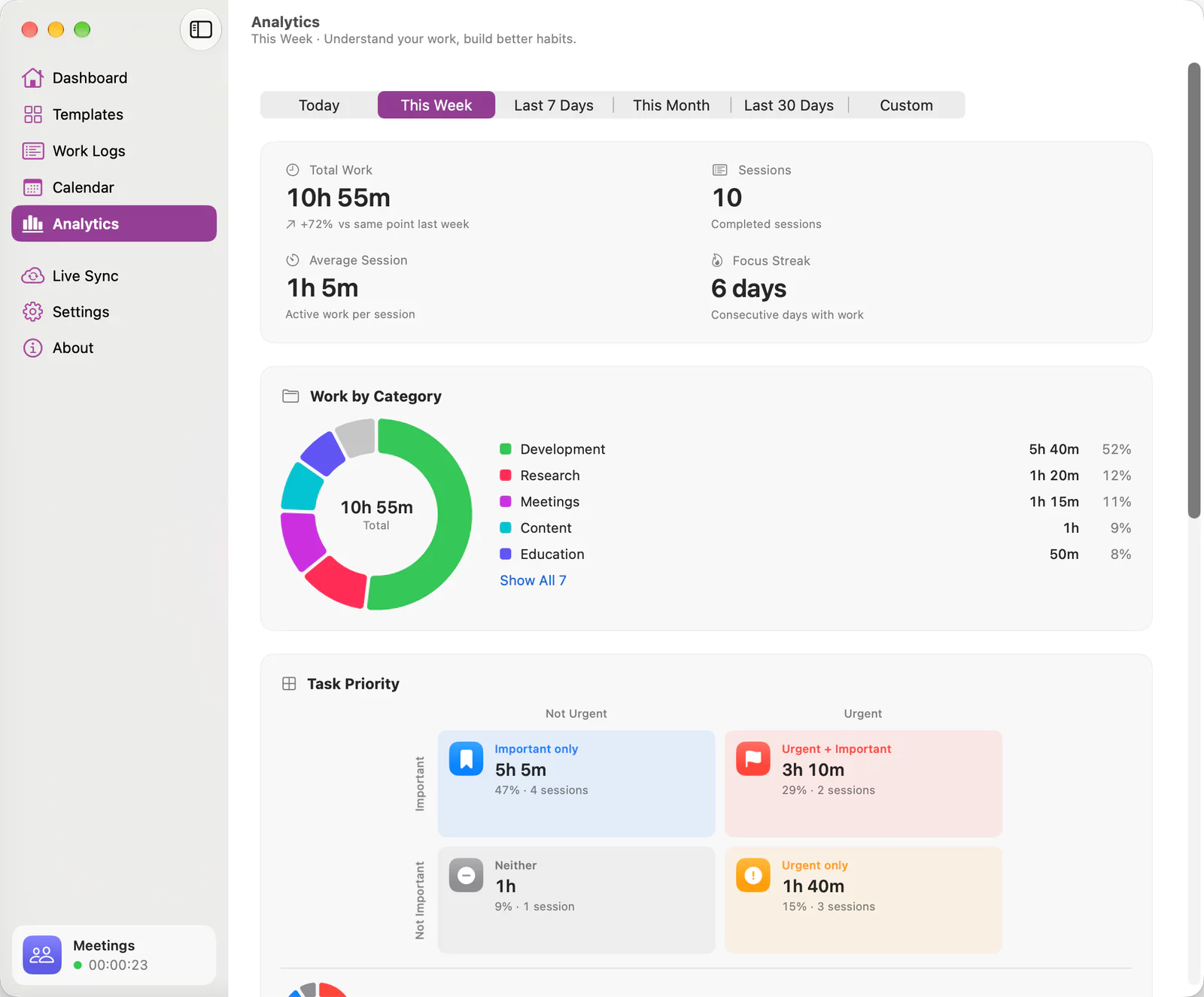
Analytics turns your work logs into patterns you can act on. One range control drives every figure, with the same calculations on iPhone, iPad, and Mac.
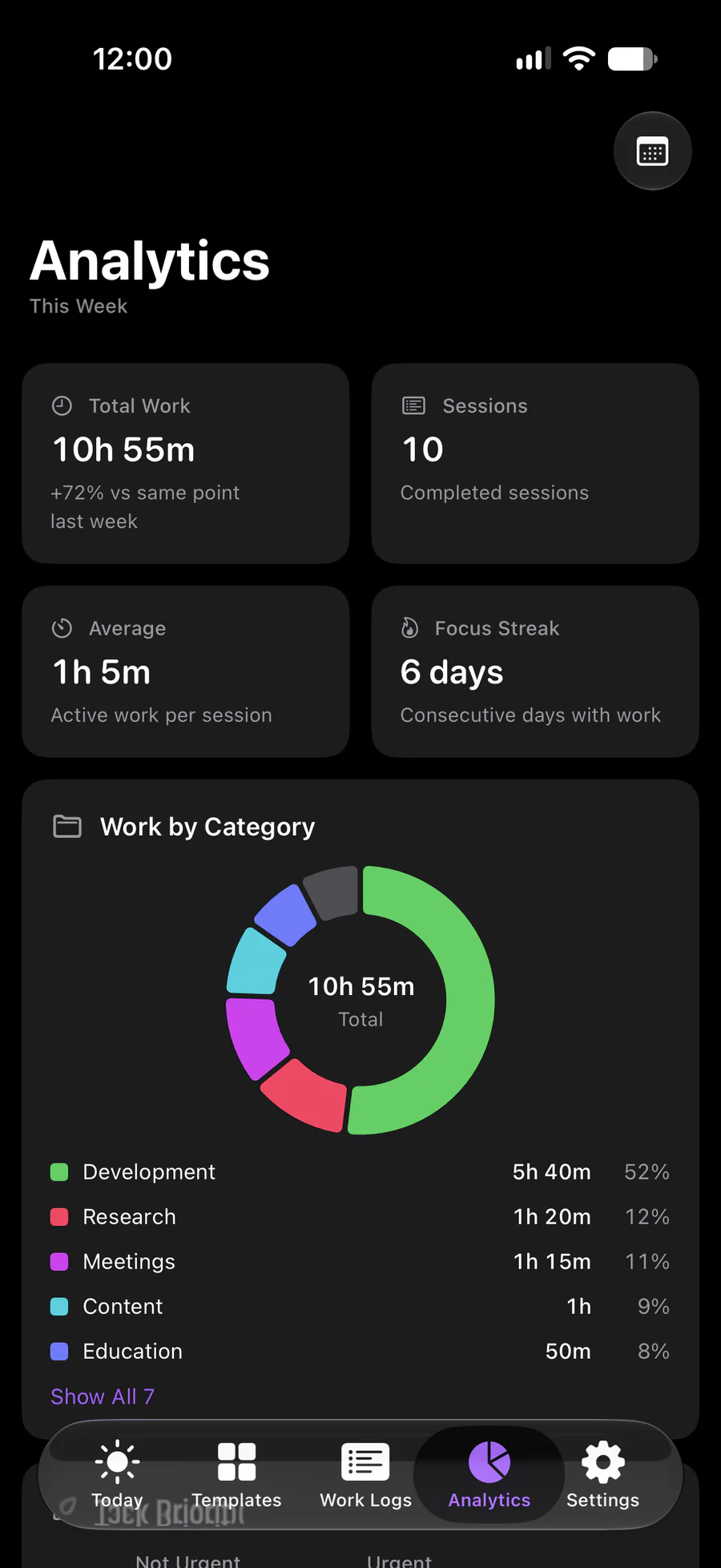
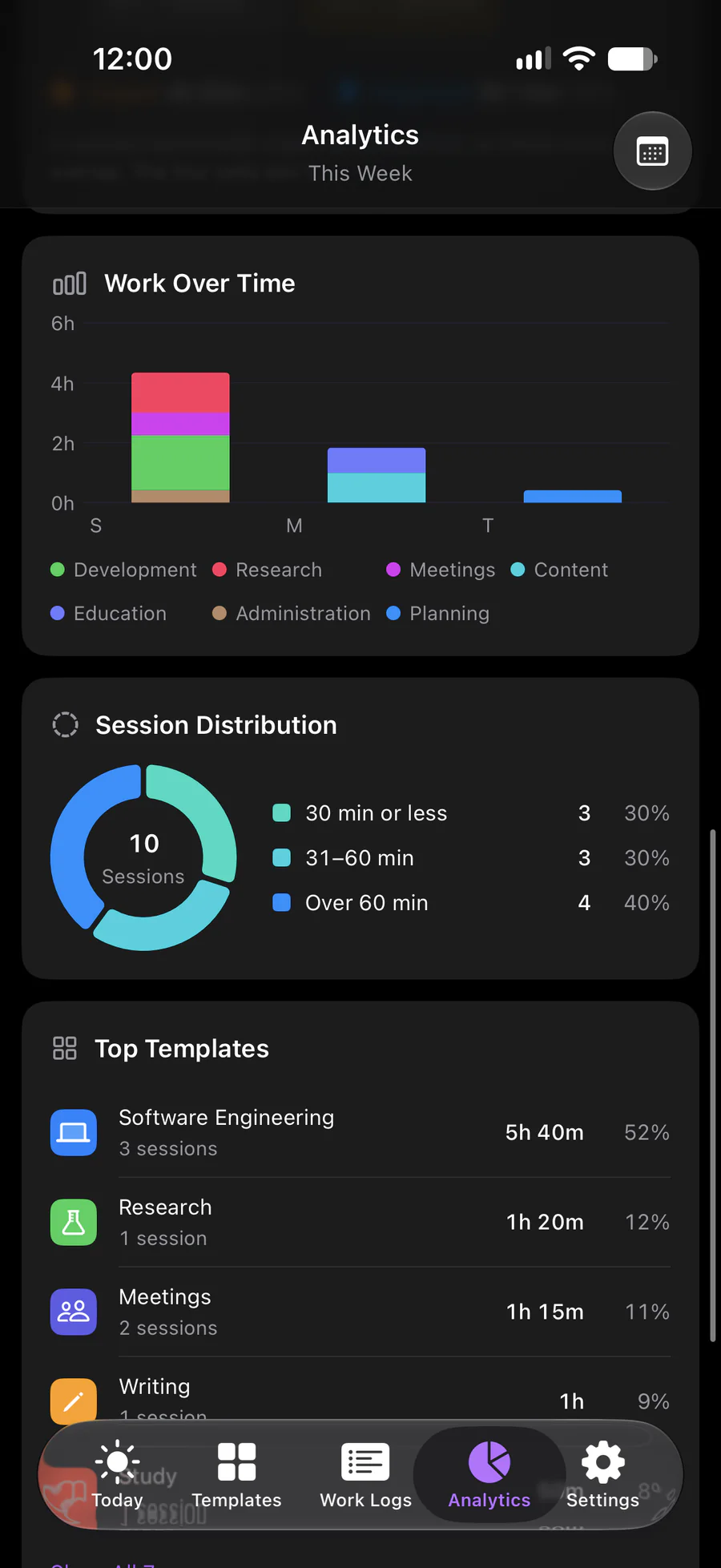
- Total Work active time
- Sessions finished
- Average Session active time
- Focus Streak consecutive days
- Work by Category
- Task Priority
- Work Over Time
- Session Distribution by length
- Top Templates
Task Priority
Know what deserves your time.
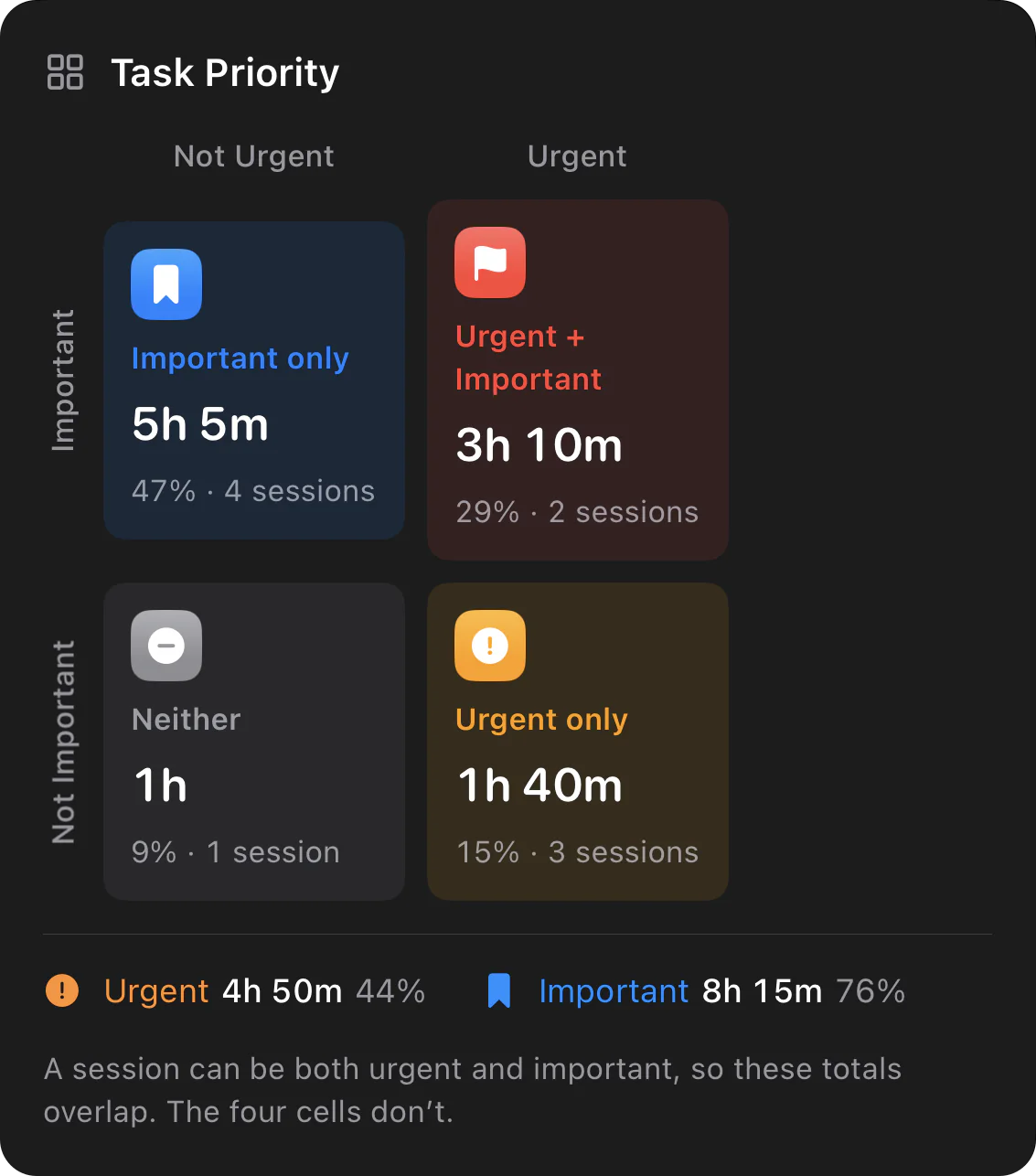
Every session records whether it was Urgent and whether it was Important. Templates set the defaults; any session can override them.
- Important onlyImportant, not urgent
- Urgent + ImportantUrgent and important
- NeitherNot urgent, not important
- Urgent onlyUrgent, not important
Mac
Made for the Mac.
A native macOS app with sidebar navigation, Calendar, Work Logs, Analytics, templates, and export — plus a CTL item in the menu bar whenever the app runs.
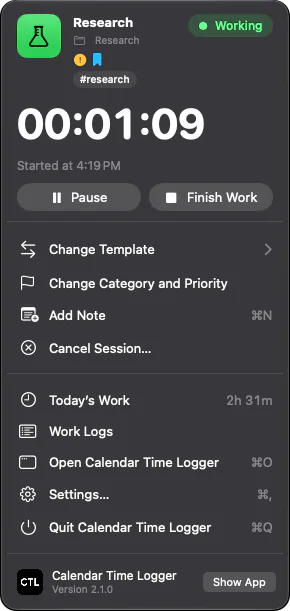
- From the menu bar
- Pause, resume, finish, change template, category, and priority, or add a note.
- Six display modes
- Show the menu bar item as anything from an icon alone to icon, name, and duration.
- At home on macOS
- Keyboard shortcuts, Shortcuts actions, and light and dark appearance.
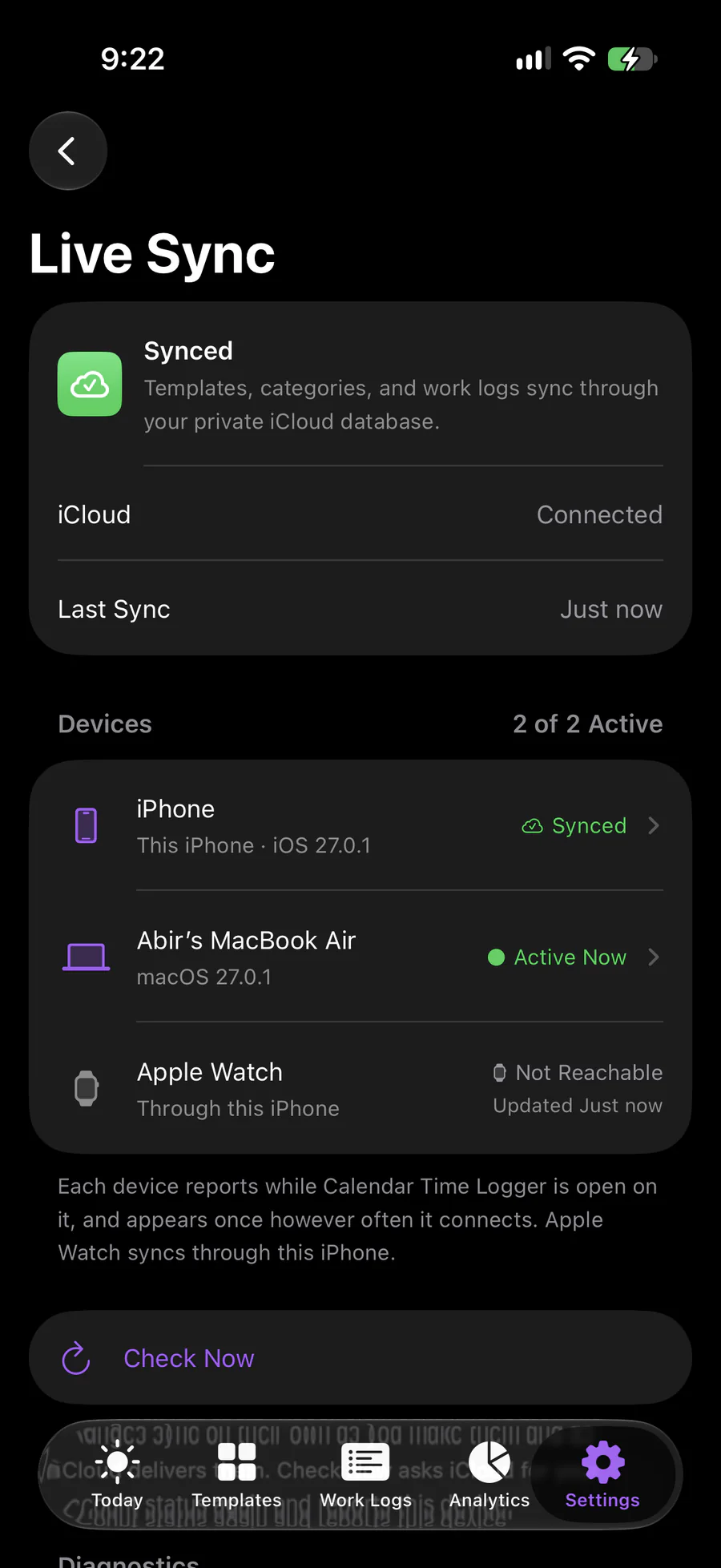
Live Sync
Start on one device. Finish on another.
Every device works out the timer from the same timestamps, so they agree on what you've done — when they've had the chance to sync.
- Mac, iPhone, and iPad
- Templates, categories, work logs, and the session in progress sync through your private iCloud database, readable only by your Apple Account.
- iPhone and Apple Watch
- The session, your templates, and today's total travel directly between your iPhone and Apple Watch — no server in between.
- Works offline
- Changes are saved on the device and sync on their own when it's back online. There's nothing to press.
- One Calendar event
- Only the device that finishes a session adds its Calendar event, so a synced session is never added twice.
Connected Devices
Live Sync shows this device's sync status, iCloud, and the last sync — then every device signed in to your Apple Account that has opened Calendar Time Logger.
- Synced This device is up to date
- Active Now The app is open there
- Recently Active Seen within the last day
- Inactive Not seen for more than a day
Open a device for its last active and last sync times, system, app version, and connection history. Rename a device, or remove one you no longer use.
Apple Watch
Your work, at a glance.
A companion to your iPhone. Templates, editing, and Calendar stay on your other devices.
- Start
- Pause
- Resume
- Finish
- Cancel
- Recent templates
- Today's progress
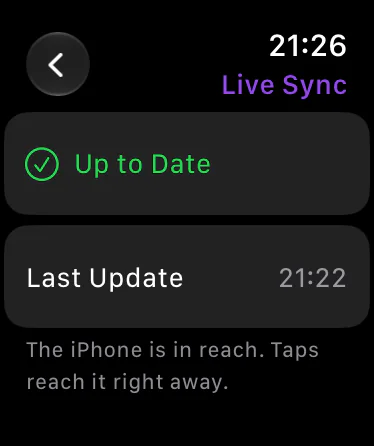
- Sync status
Start Work 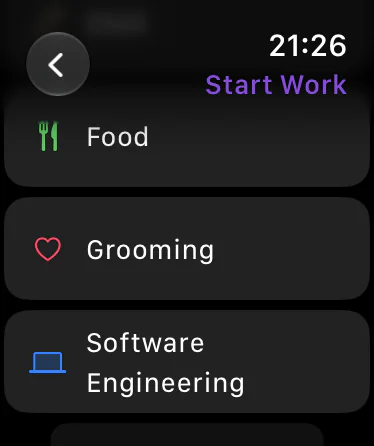
Templates 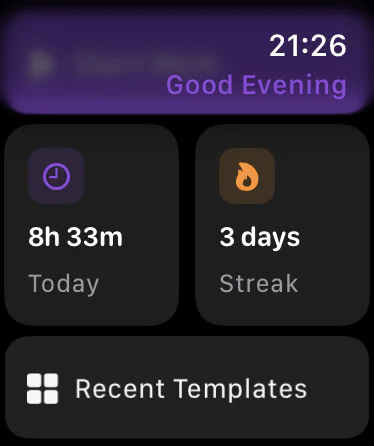
Today 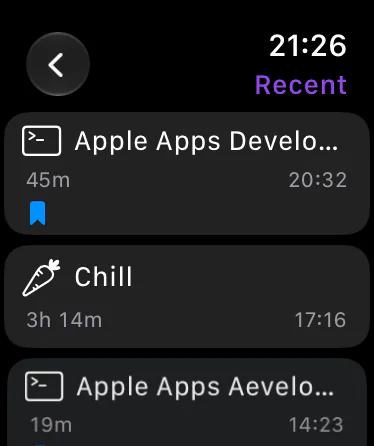
Recent work
Away from your iPhone? Keep going. The Watch shows Waiting for iPhone and delivers your taps with the times you made them, so a session keeps its real start.
iPad
More space. More clarity.
A larger touch workspace, laid out for the screen rather than stretched from the phone. The running session sits at the top of the sidebar, whichever section you're in.
- Templates and Work Logs side by side with their details
- Calendar with a month to pick a day and its sessions
- Analytics in two columns
- Split View, Slide Over, Stage Manager, and every orientation
In the sidebar
- ⌘N
- Start Work
- ⇧⌘P
- Pause or resume
- ⌘↩
- Finish the session
- ⇧⌘⌫
- Cancel the session
Excel export
Your data, your way.
Export work logs as an Excel workbook (.xlsx) with the columns you choose, in the order you choose — plus an optional Summary sheet totalling work by template, category, priority, day, and week.
- Date
- Start Time
- End Time
- Duration
- Active Duration
- Paused Duration
- Template
- Category
- Urgent
- Important
- Task Priority
- Tags
- Notes
- Calendar
- Calendar Event Status
- Calendar Event Identifier
- Session Status
Start from a preset — Basic, Detailed, Priority Analysis, Category Analysis, or Everything. Dates and durations are real Excel values. On Mac, export from Settings; on iPhone and iPad, from the More menu in Work Logs.
Your work belongs to you.
Calendar Time Logger keeps your work on your devices and in your own iCloud.
- No account
- Nothing to sign up for, no sign-in, and no servers of its own.
- Your private iCloud
- Sync goes only through your private iCloud database, which only your Apple Account can read.
- No tracking
- No analytics, tracking, or advertising, and no third-party code. The app has no networking code of its own.
- Only its own events
- Calendar access is used to add and update the events the app created — never to change anything else.
Your time, clearly understood.
Calendar Time Logger is coming soon to the App Store for iPhone, iPad, Mac, and Apple Watch.